Audience
Leaders of mid-size enterprises
A modern planning platform does not make Excel obsolete. It makes Excel better — if the two work on the same numbers. EAConnect Planning gives finance teams a full web experience: driver-based models, input forms, workflows, dashboards and an AI assistant. Yet on any given Monday most of the same people still have a spreadsheet open. That is not a failure of adoption; it is a sign that Excel does a different job, and does it well. This article explains why Excel keeps its place next to a comprehensive planning UI, and how the EAConnect Excel add-in lets a team use both without copying numbers between them.
The web platform is where the plan is governed. Excel is where people think, check and package it. Each is best at different work, and the mistake is to make one do the other's job.
| The web platform is best at | Excel is best at |
|---|---|
| One governed model with security, locks and audit | Fast, personal analysis on top of those numbers |
| Structured data entry through forms and workflows | Side calculations the model was never built to hold |
| Consolidation, currency translation, allocations | Combining plan data with a bank file, a quote or a list |
| Dashboards that everyone reads the same way | Exact layouts for board packs and management packs |
| Approvals, versions and a single source of truth | A scratch model in minutes, before it earns a place in the platform |
The left column is about the number of record. The right column is about what people do with it. A platform that tries to absorb the right column ends up with a worse spreadsheet inside a browser.
Finance teams think in formulas and shortcuts. Asking them to leave that behind slows them down, and the slowdown is paid every day.
A CFO's question on Tuesday afternoon rarely matches a dashboard built last quarter. The answer usually needs a pivot, a side column and a chart, in the next twenty minutes.
Board packs need exact fonts, footnotes, page breaks and the same layout as last quarter. That is document work, and Excel is a better document tool than any grid.
An analyst can test an idea in ten minutes before asking anyone to change the model. Most ideas do not survive the ten minutes, and that is the point.
It is the exported copy: numbers that go stale the moment they leave the system, versions emailed around, and no trail back to the source. The 96% of FP&A teams who use spreadsheets weekly are not the problem. The export is. The answer is to connect Excel to the platform, not to ban it.
In EAConnect, Excel is a first-class way into the plan, not an export target. The web platform, the Excel add-in, server-side Excel automation and scheduled broadcasts all read the same governed model.
Figure 1. One model, three routes into a workbook. The add-in is interactive; automation and broadcasts are produced; all three read the governed model rather than an export of it.
Governed EAConnect reports inside Excel — live, refreshable, in a single sidebar. There is no new ribbon to learn: open the add-in and everything happens in one pane beside the sheet.
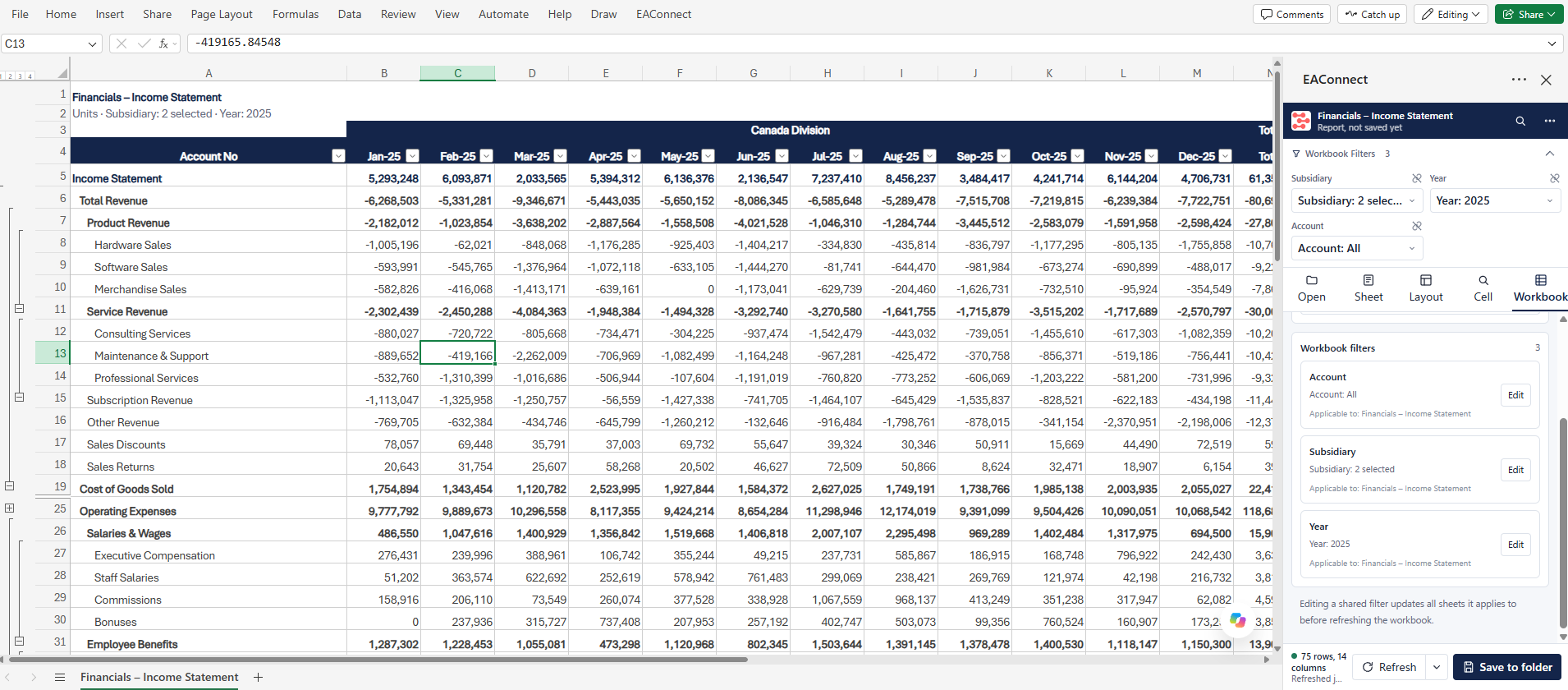
Figure 2. A governed report on an Excel sheet as real cells with outline groups, and the add-in sidebar to its right. Formulas, charts and notes added around the report stay put on refresh.
A small window asks for your EAConnect account. You see exactly the data you can see on the web — the same access rules, nothing more.
Pick a saved report or start from any EAConnect report. It lands on its own sheet as real Excel cells, not an image or a locked object.
Add formulas, charts and notes around the report. They stay where you put them when the numbers refresh.
One click pulls the latest numbers. Save the layout to a shared folder so colleagues open the same view, from the same source.
Five features do most of the work: hierarchies, the layout editor, the report library, shared filters and saving to folders.
Account hierarchies arrive as Excel outline groups. Use the +/− buttons in the margin, or the 1, 2, 3 level buttons, exactly as in any workbook. Choose which level the report opens at, and nest another field — Department, say — under each account. The hierarchy is the platform's versioned hierarchy; the outline is Excel's.
The layout editor sits in the sidebar. Add fields to Rows, Columns or Values with one click or by dragging, and pick Sum, Average, Min, Max or Count for each value. Changes wait until you press Apply and refresh, so the report reloads once, not after every click.
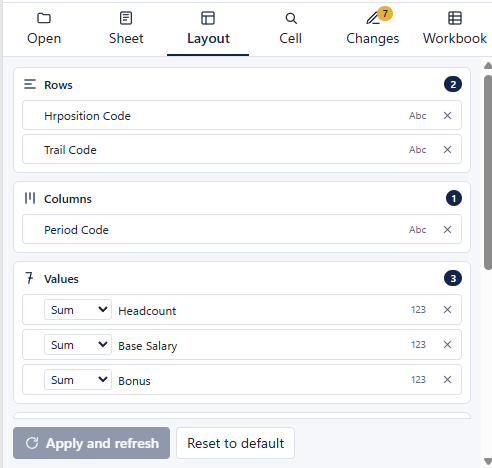
Figure 3. The layout editor: rows, columns and values, with an aggregation per value and a single apply.
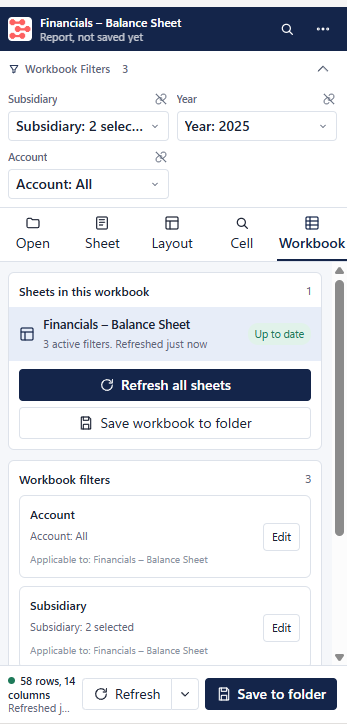
Figure 4. Filters as chips at the top of the sidebar, and the Workbook tab: every EAConnect sheet, its refresh status, one refresh for all of them.
The Open tab lists reports saved to shared folders, the EAConnect reports you can start from, and a search box across all of them. Each report opens on its own sheet, so one workbook can hold a whole management pack.
Filters sit at the top of the sidebar as chips. When two sheets use the same field, tick Apply to and they share one filter: change Subsidiary once and both reports update. Refresh all sheets brings every EAConnect sheet in the workbook up to date in one go.
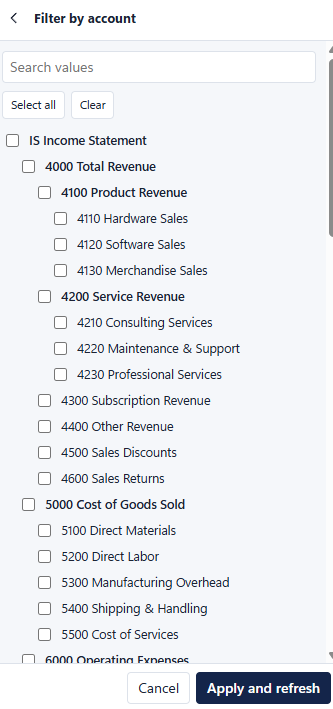
Figure 5. Filtering by account over the platform's hierarchy, with a single apply.
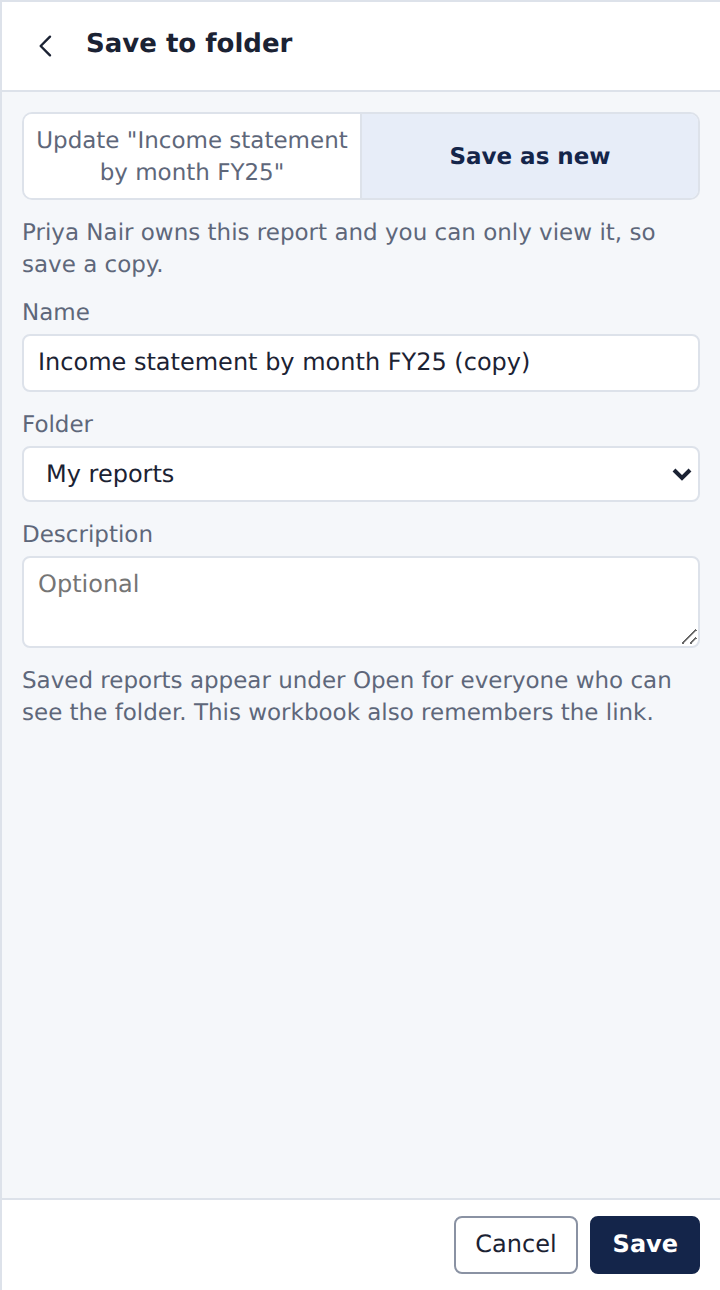
Figure 6. Saving a layout to a shared folder — as a copy when the user only has view access to the original.
Save to folder stores the layout, filters and hierarchy settings in EAConnect, where the team can open them. If you only have view access to a report, the add-in saves a copy to your own folder rather than overwriting the original. Saved reports appear under Open for everyone who can see the folder, and the workbook remembers the link.
The add-in is for people working in Excel. Two more features deliver Excel files to people who are not.
| Feature | What it does | Use it for |
|---|---|---|
| Excel automation | Generates finished XLSX or XLSM workbooks from EAConnect reports on the server: your own templates filled with live data, several reports in one workbook with a cover sheet, and hierarchies that expand and collapse inside the file. Handles up to 100,000 rows per grid. | Board packs and regulatory templates in a fixed format |
| Report broadcasting | Emails a report as an Excel attachment on a schedule. Filters and titles resolve when it is sent, so "current month" always means the current month. Each run is logged with sent and failed counts. | Monthly packs to executives, weekly flash reports to regional managers |
Together with the add-in, these cover the three ways a workbook leaves the platform: pulled live by an analyst, generated to a template, or delivered on a schedule — and in each case the file can be traced to the model and the version it came from.
Opinions from people who have watched planning platforms succeed and fail on their relationship with Excel. Not product claims.
Every planning implementation that tried to eliminate Excel produced shadow workbooks within a quarter. The governed number belongs in the platform; the thinking belongs wherever the analyst is fastest. Connect the two and the shadow copies stop, because they are no longer necessary.
An add-in that pastes a picture of a report is an export with extra steps. Real cells with outline groups, refreshed from the model under the user's own access rules, are the difference between a workbook that stays right and one that was right on Tuesday.
When a saved layout lives in the platform rather than on someone's drive, the management pack survives the analyst who built it. Save-to-folder with view-only copies is the small feature that makes this safe.
Board packs and regulatory templates should be generated, not hand-assembled. Automation from a template with live data, and broadcasts that resolve filters at send time, remove the last-mile hours without removing the last-mile format.
A scratch model that survives three cycles has earned a place in the platform. Ask analysts quarterly which side calculations they keep re-doing; those are the next driver models.
If your team plans in EAConnect and still lives in Excel, you no longer have to choose. Ask your EAConnect administrator to enable the Excel add-in for your workspace, or contact the EAConnect team for a walkthrough.